How to use the demo page
The demo page is designed to help you explore and understand how the Multi-currency Gateway APIs work.
Link: View Demo Website
Option 1: Payment Link (Hello Clever)
-
Step 1: On the demo page, select your preferred currency.
-
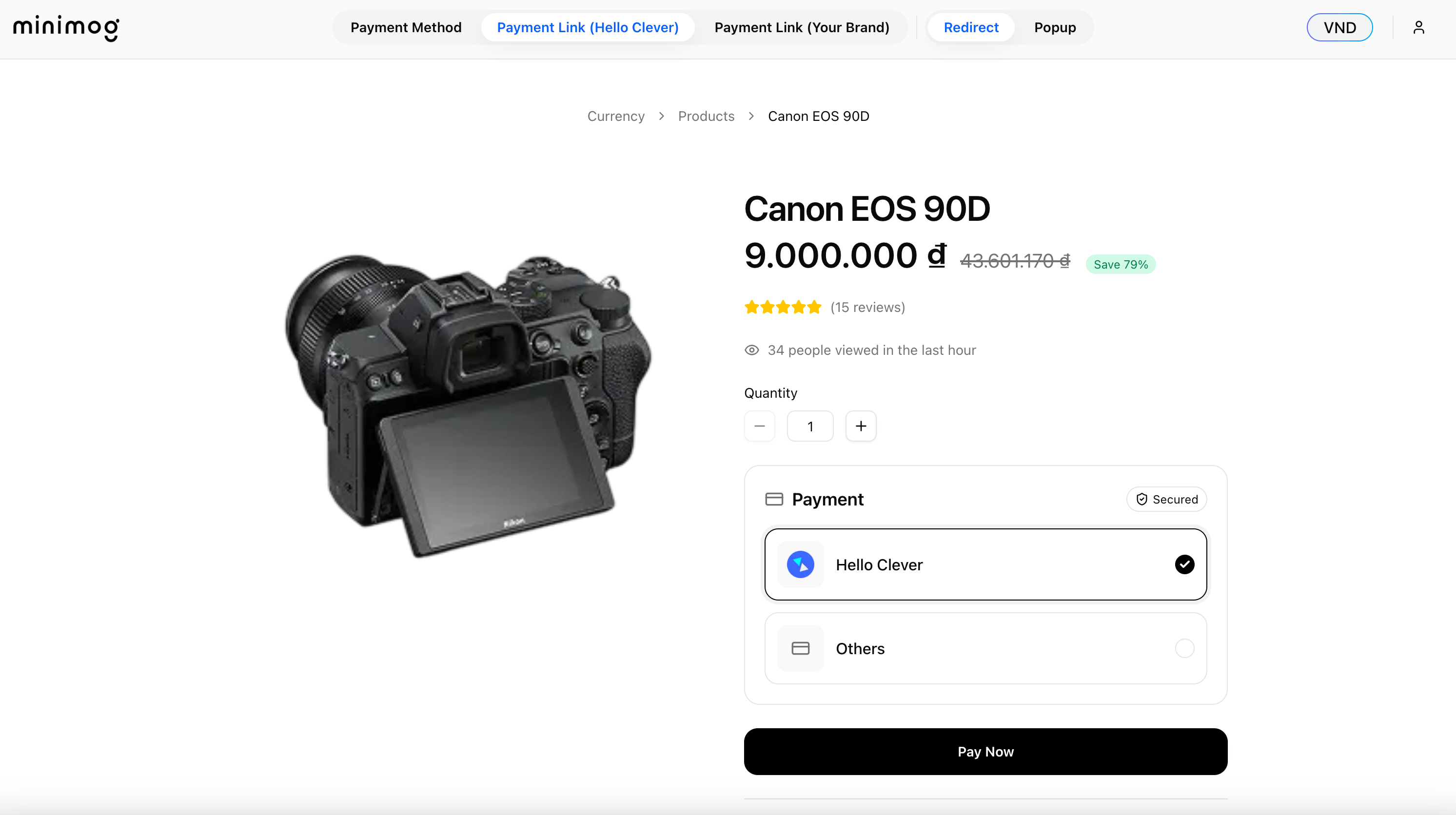
Step 2: From the top navigation bar, click Payment Link (Hello Clever).
-
Step 3: Select any product from the product list.
-
Step 4: You will be redirected to a hosted payment page showing the available payment methods.
Option 2: Payment Method
-
Step 1: On the demo page, select your preferred currency.
-
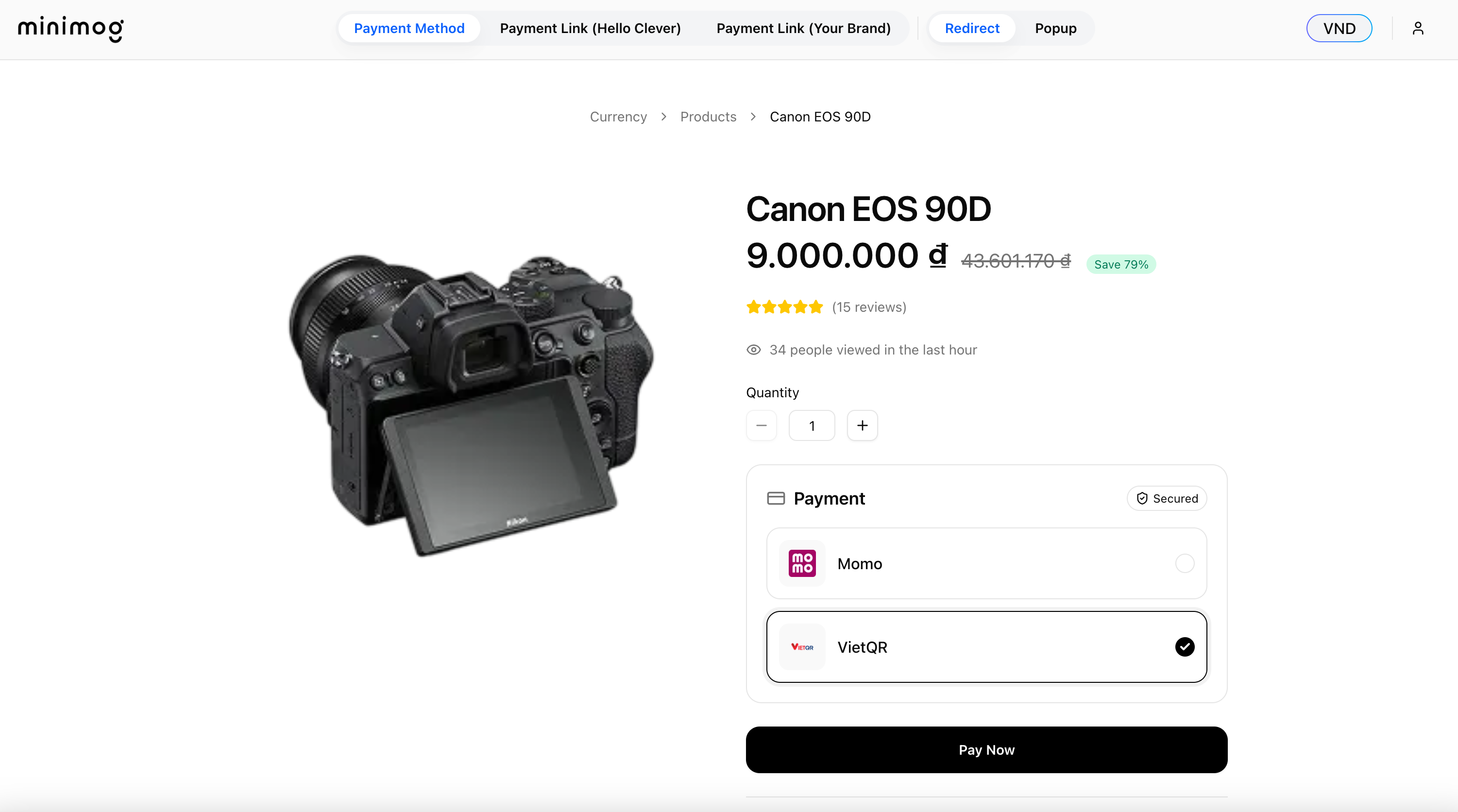
Step 2: From the top navigation bar, click Payment Method.
-
Step 3: Select any product from the product list.
-
Step 4: A list of payment methods (based on the selected currency) will be displayed directly for checkout.
Option 3: Payment Method - Popup
-
Step 1: On the demo page, select your preferred currency.
-
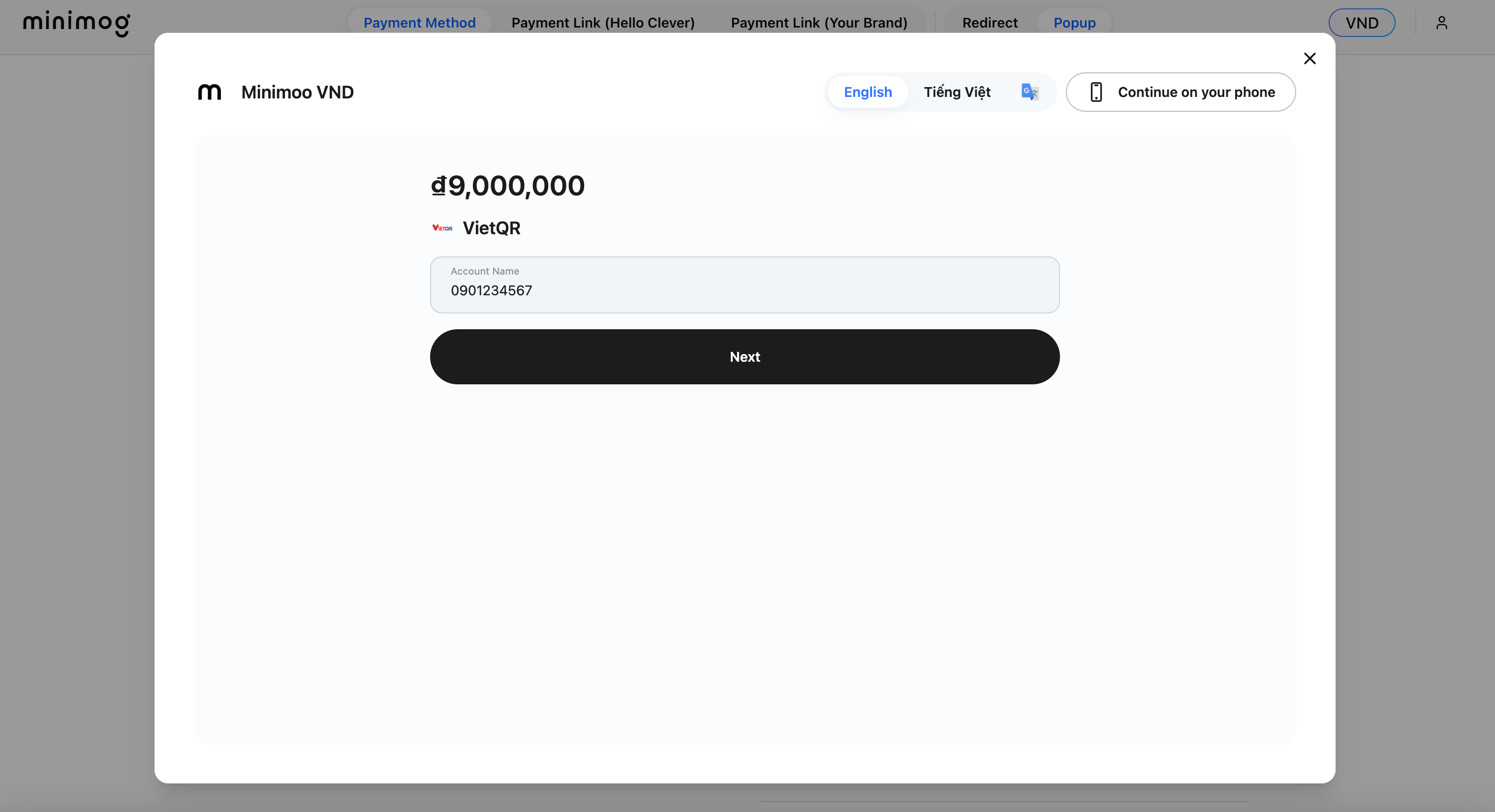
Step 2: From the top navigation bar, click Popup.
-
Step 3: Select any product from the product list.
-
Step 4: A payment popup will open directly on the demo site, allowing you to complete the checkout without leaving the page.
Option 4: Payment Link (Hello Clever) - Redirect
-
Step 1: On the demo page, select your preferred currency.
-
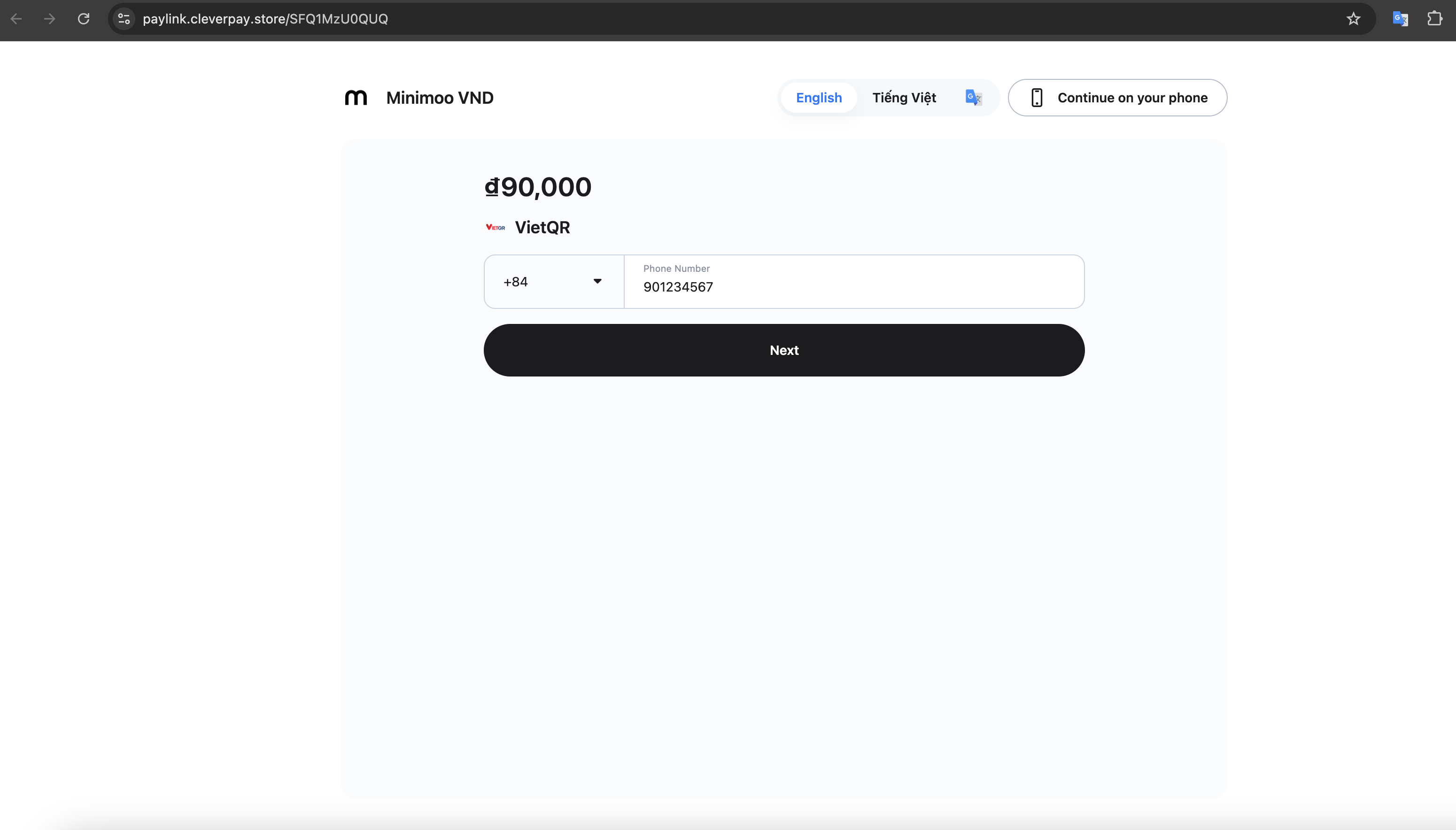
Step 2: From the top navigation bar, click Redirect.
-
Step 3: Select any product from the product list.
-
Step 4: You will be redirected to a new standalone payment page to complete checkout.

Option 5: Payment Link (Your brand) - Redirect
-
Step 1: On the demo page, select your preferred currency.
-
Step 2: From the top navigation bar, click Payment Link (Your Brand).
-
Step 3: Select any product from the product list.
-
Step 4: You will be redirected to a branded payment page (using your own domain) showing the available payment methods.
Sandbox Payment Simulator
For the Sandbox environment, if you’ve integrated the Multi-currency Gateway APIs and want to test the payment process, there are two ways to simulate:
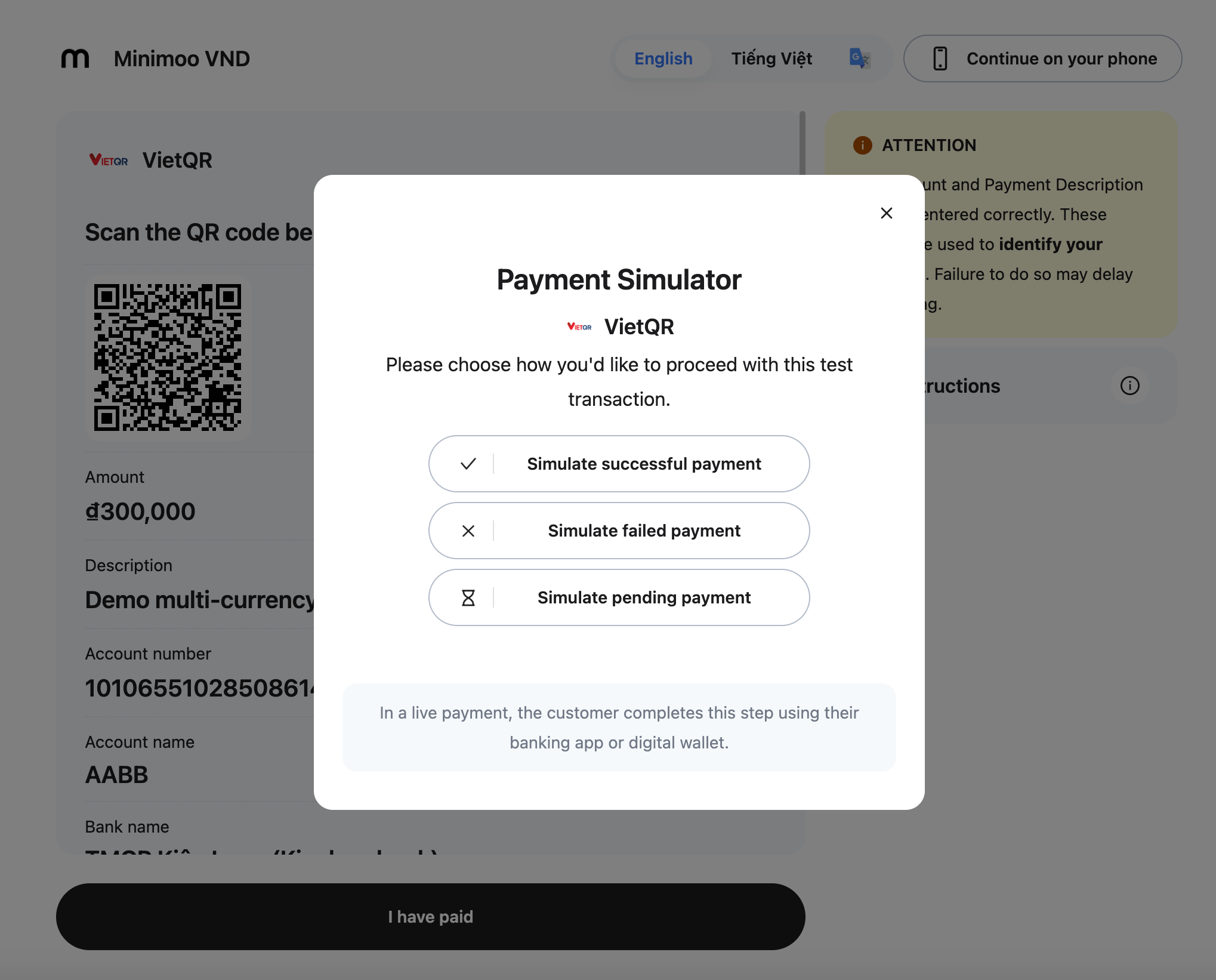
Simulator Popup
- On the page, click the “I have paid” button.
- The Simulator popup will appear.
- Use it to simulate different payment scenarios as needed.
Notes
- Currency selection is always the first step before viewing products.
- Payment Method per Currency: immediately shows the list of payment methods after selecting a product.
- Payment Link (Hello Clever) and Payment Link (Your Brand): both redirect you to a hosted checkout page showing all available payment methods.
- Popup: keeps the user on the demo site, displaying the checkout flow inside an embedded popup window.
- Redirect: takes the user to a standalone payment page in a new tab or window.